Jobs
Create a job, move it through its statuses and write the service-book entry.
A job is all the work on one car in one visit. Work you add during the visit belongs to the same job.
Create a job
There are two ways.
- From the calendar. Mark a free time on a lift. See the calendar.
- From the list. Open Job history and click New job.
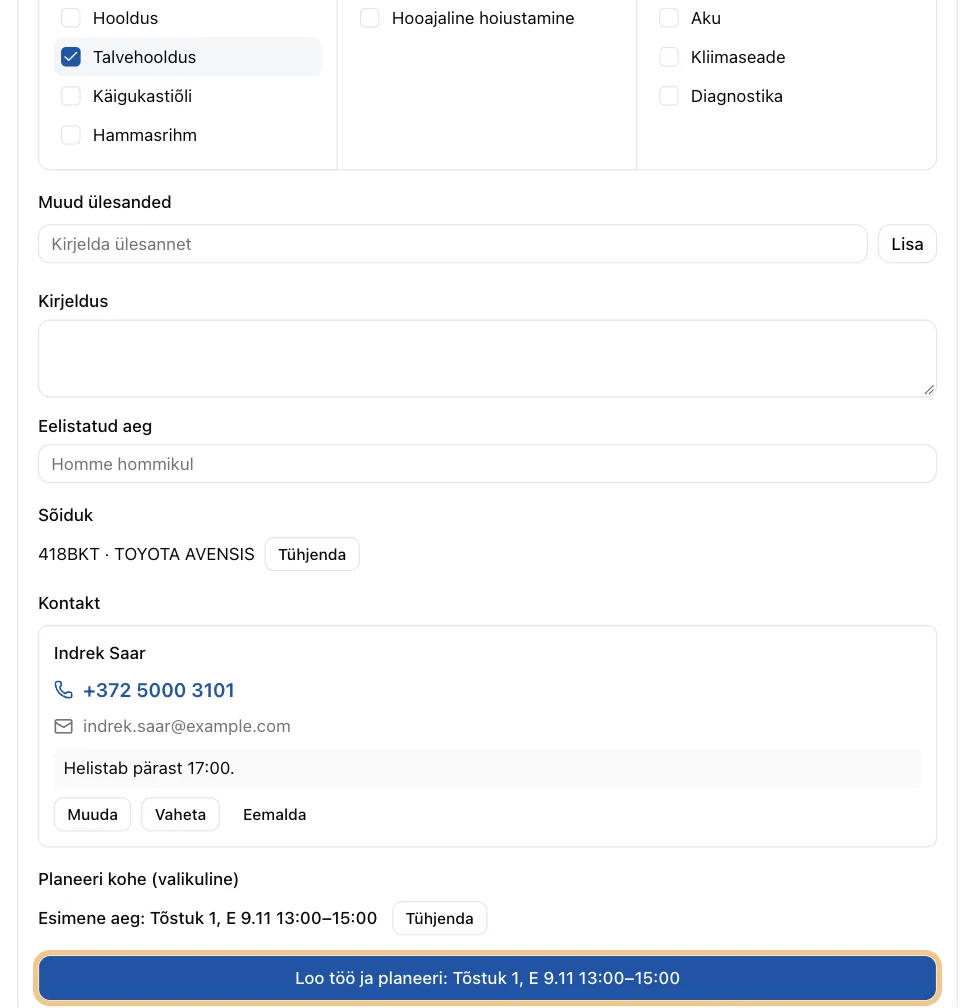
Fill in the form.
- Vehicle. Type the plate and click Find.
- Contact. Find the customer by name or phone, or create a new one. See Contacts. Once the plate is found, Automagic suggests who came with this car last time: "Last with this car: name · phone". Click Pick to use it.
- Tasks from templates. Click the tasks you need, for example Oil change.
- Other tasks. Type anything not on the list and click Add.
- Description. Anything worth knowing, for example "noise from the front left".
- Click Create job and schedule. No time yet? Click Create job without a time.
Move the job along
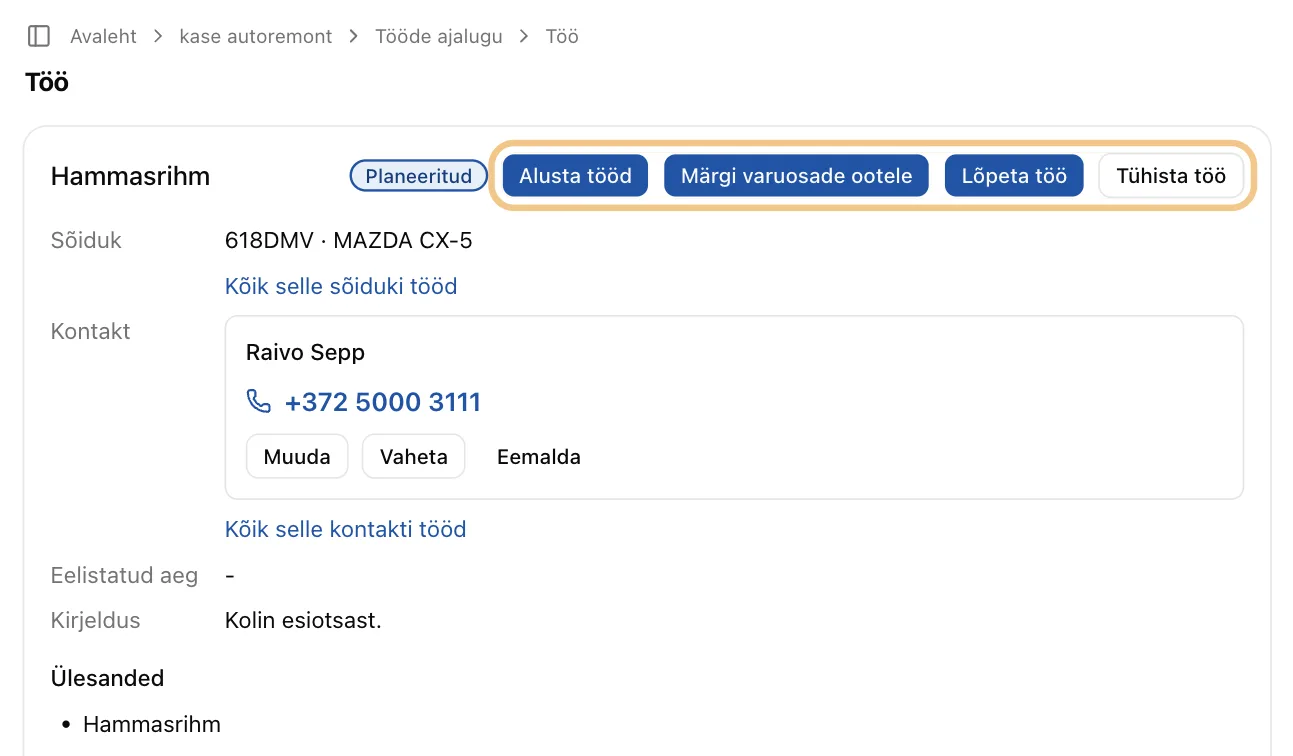
The job page shows where the job stands. The step buttons are at the top of the job card, next to the status badges. Click the next step.
- Start work. The car is on the lift.
- Waiting for parts. Work stops until the parts arrive.
- Complete. The work is done.
- Cancel job. The job will not happen. Its future calendar time is freed.
Before you click Complete: write the service-book entry. A completed job is locked. It stays in the calendar in grey, where it was planned.
Write the service-book entry
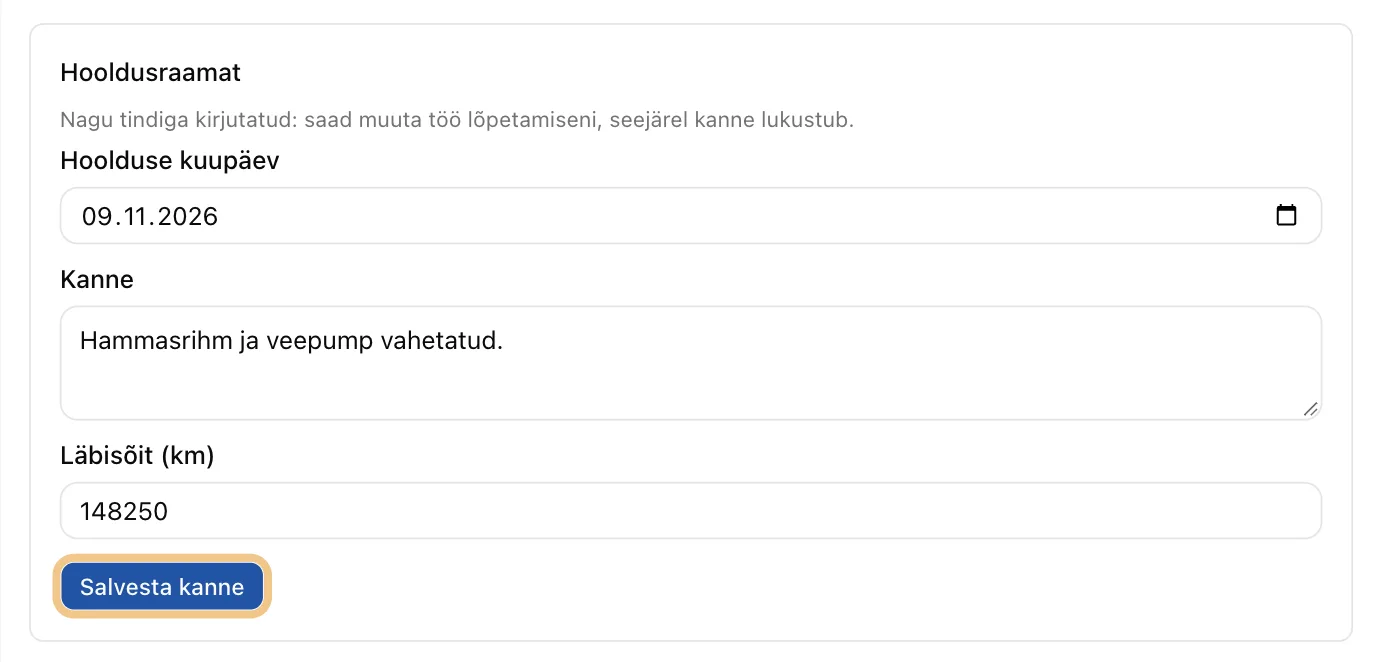
The Service book section is on the job page. Fill in:
- Date of service;
- Entry, what was done;
- Odometer (km).
Click Save entry. You can change it until the job is completed.
Find a job
Job history lists all your jobs. Click a status at the top to see only those jobs.
Each row shows the job's time. A booked job shows its first booking, for example "Lift 1, Mon 9 Nov 08:00–10:00". Otherwise the row shows the service date, or "No time yet". Upcoming jobs come first. The rest follow, newest first.
From a job page you can also open:
- All jobs for this vehicle;
- All jobs for this contact.
Add another time
A booked job offers Add another time. Mark a range in the calendar below the job.
Delete or cancel
Delete job is at the bottom of the job page. You can delete a job you created yourself. A job from the marketplace is never deleted. Cancel it instead, and the driver sees it as cancelled.
Next step: Vehicles, registry and service history