Add a resource, such as a new lift
Add, rename, sort and switch off your lifts, garage spaces and equipment.
You bought a new lift. Add it, and you can plan work on it right away.
Add a lift
- Open My Workshop in the sidebar.
- Open the Resources tab.
- Pick the Type, for example Lift.
- Type the Name. The field suggests the next free number, for example "Lift 4".
- Click Add resource.
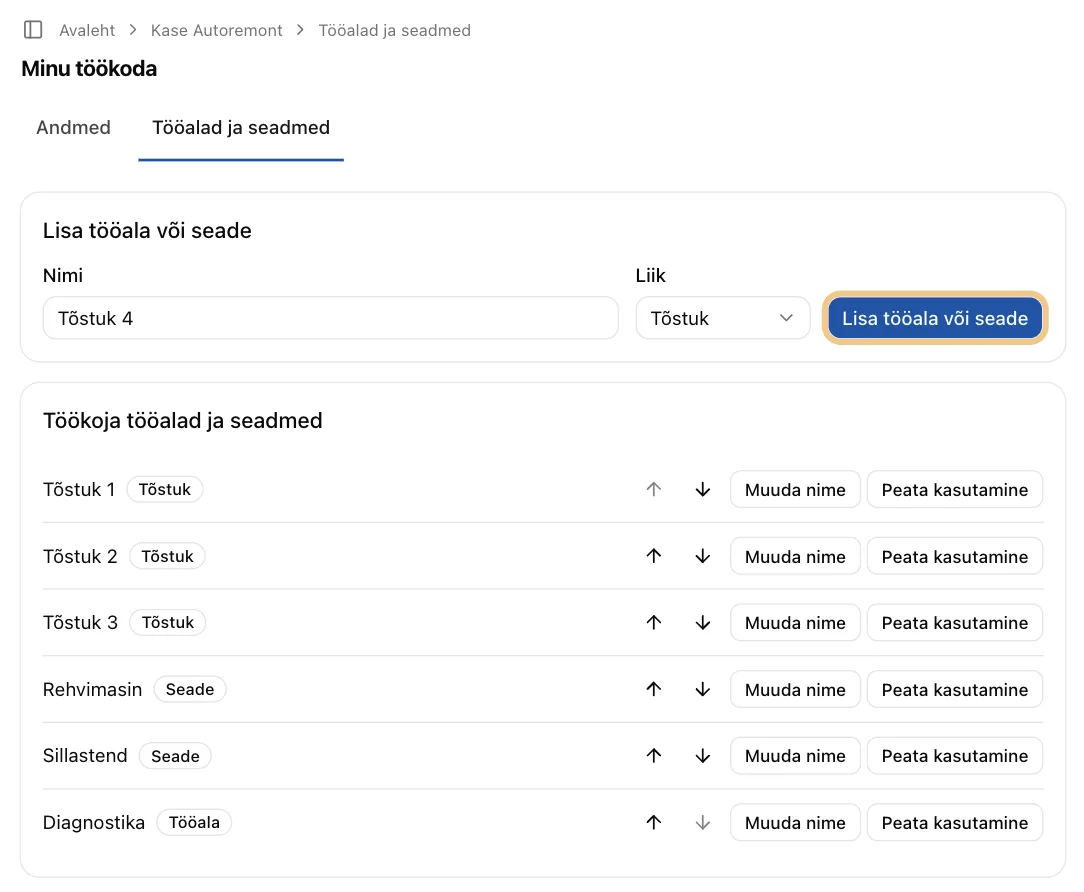
The new lift now has its own row in the calendar.
Sort the rows
Click Move up or Move down next to a resource. The calendar shows the rows in the same order.
Rename
Click Rename, type the new name and click Save.
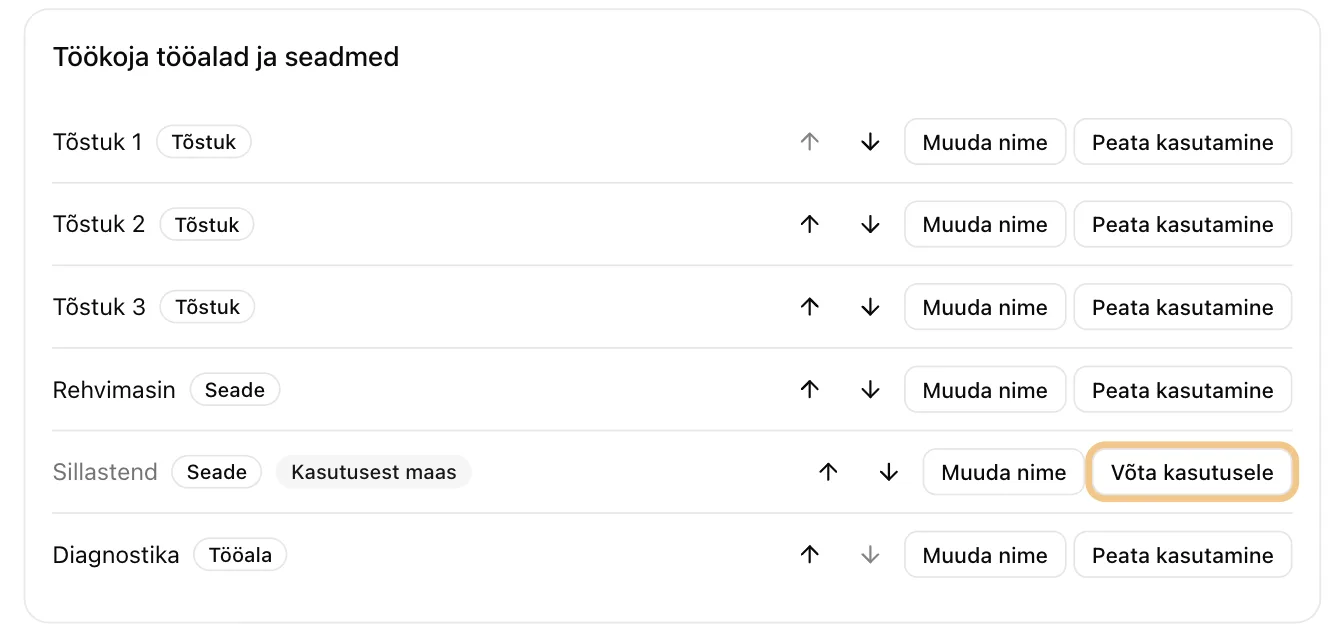
A lift is out of service
Click Deactivate. The lift disappears from the calendar. Its past jobs stay.
If the lift has bookings ahead, Automagic first asks "Pause this resource?" and says how many bookings are ahead. The bookings stay. Click Back to keep the lift as it is.
When it works again, click Activate.
What counts as a resource
- A lift or a garage space.
- A machine, such as a tyre changer or an alignment stand.
- A function, such as diagnostics.
Employees are not resources. They have their own logins and do not appear in the calendar.
Next step: Plan the week in the calendar