Plan the week in the calendar
Views, new jobs, moving entries and what the colours mean.
The calendar shows all your active resources. Each resource is one row.
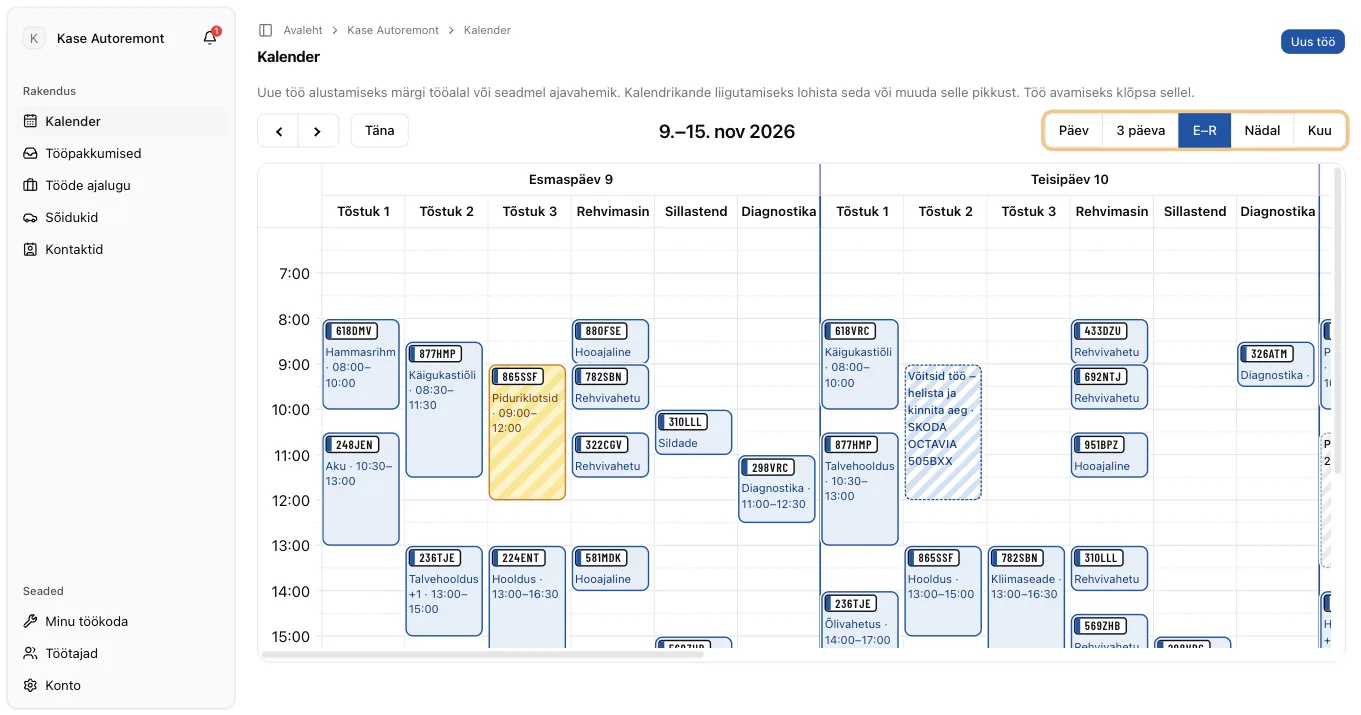
Pick a view
Use the buttons above the calendar.
- Day. One day, hour by hour. Best for planning.
- 3 days and Mon–Fri. A few days side by side.
- Week. The whole week across all lifts.
- Month. A quick overview. To add a job, switch to Day or Week.
Click Today to jump back to today.
Book a new job
- Open the Day view and find a free time on a lift.
- Drag across that time with the mouse.
- The New job page opens with this time filled in.
- Fill in the car, the customer and the tasks.
- Click Create job and schedule.
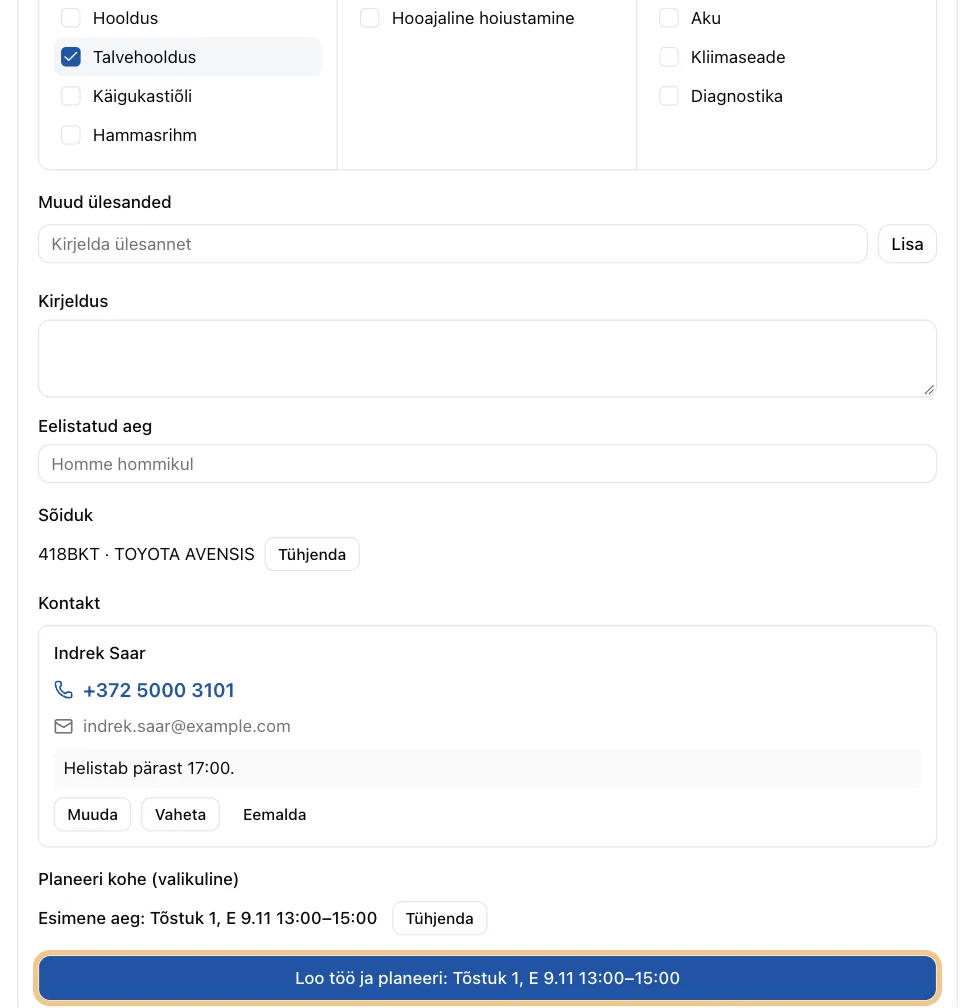
More about the form: Jobs.
Move or change an entry
- Move. Drag the entry to another time or another lift.
- Longer or shorter. Pull its bottom edge.
- Open the job. Click the entry.
Entries on one lift may overlap. In a real workshop, that happens.
One job on two lifts
A car is on Lift 1 in the morning and on the alignment stand after lunch. Give the job two calendar entries. Open the job and add the second time in its Calendar section.
What the colours mean
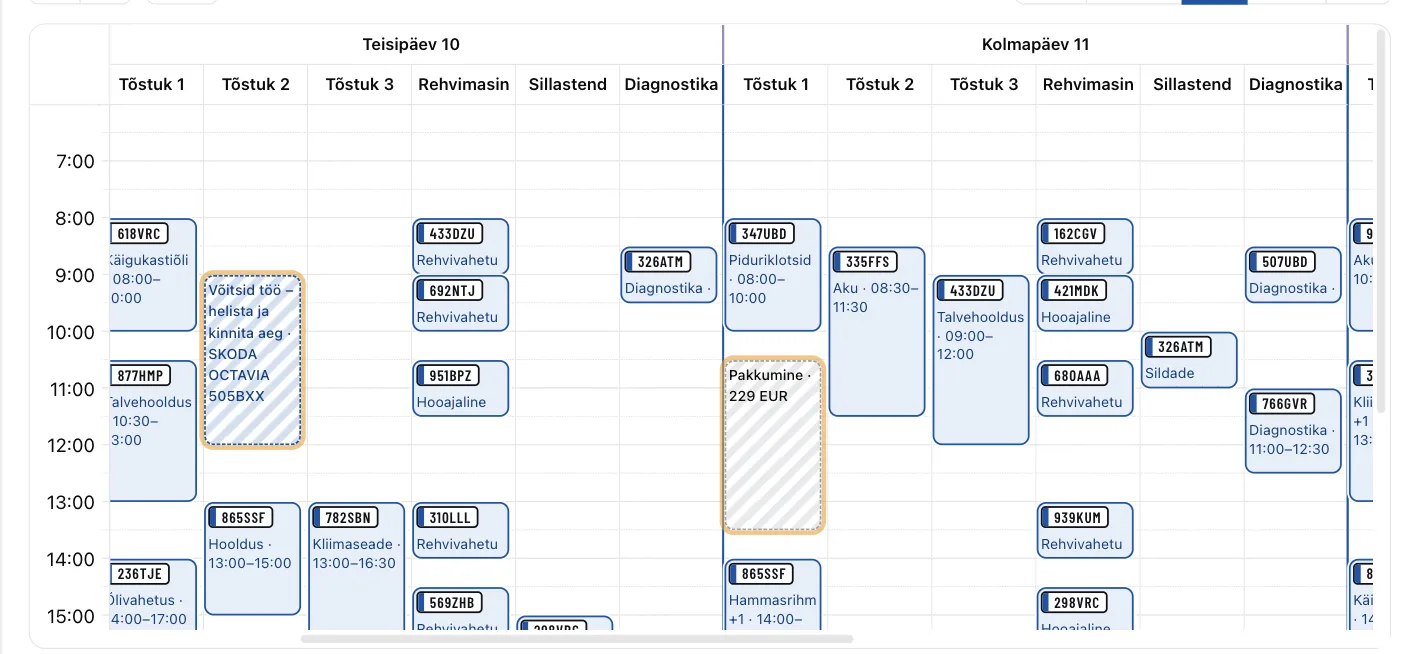
- Normal colour. A planned job or a job in progress.
- Grey. A completed job. It is locked.
- Grey and dashed, "Offer". An offer you made. It blocks nothing.
- Highlighted, "Won – call and confirm". A driver picked your offer. Call them now. See Offers on new jobs.
- "From marketplace" badge. The job came from a driver's offer request.
Your working day
The calendar shows 06:00 to 21:00 until you change it.
- Open My Workshop, then Details.
- Set Calendar day starts and Calendar day ends.
- Click Save details.
This only changes the view. You can still book outside these hours.
Next step: Jobs