Contacts
Your workshop's own customer list: phone, email, notes and every job.
Contacts is your workshop's own list of customers. Only your workshop sees it.
A contact is the person you call when the car is ready. They do not need an Automagic account.
Why it pays off
- The next visit takes seconds. Type two digits of the phone and the customer is there.
- One click to call. The job page shows a Call button with the number.
- The whole story. Click Jobs and you see every job and every car of this customer.
- Notes. "Calls after 5 pm." "Second car is a Volvo." You remember it next time.
Add a contact
- Open Contacts in the sidebar.
- Fill in Name, Phone and Email.
- Write Notes if you want.
- Click Add contact.
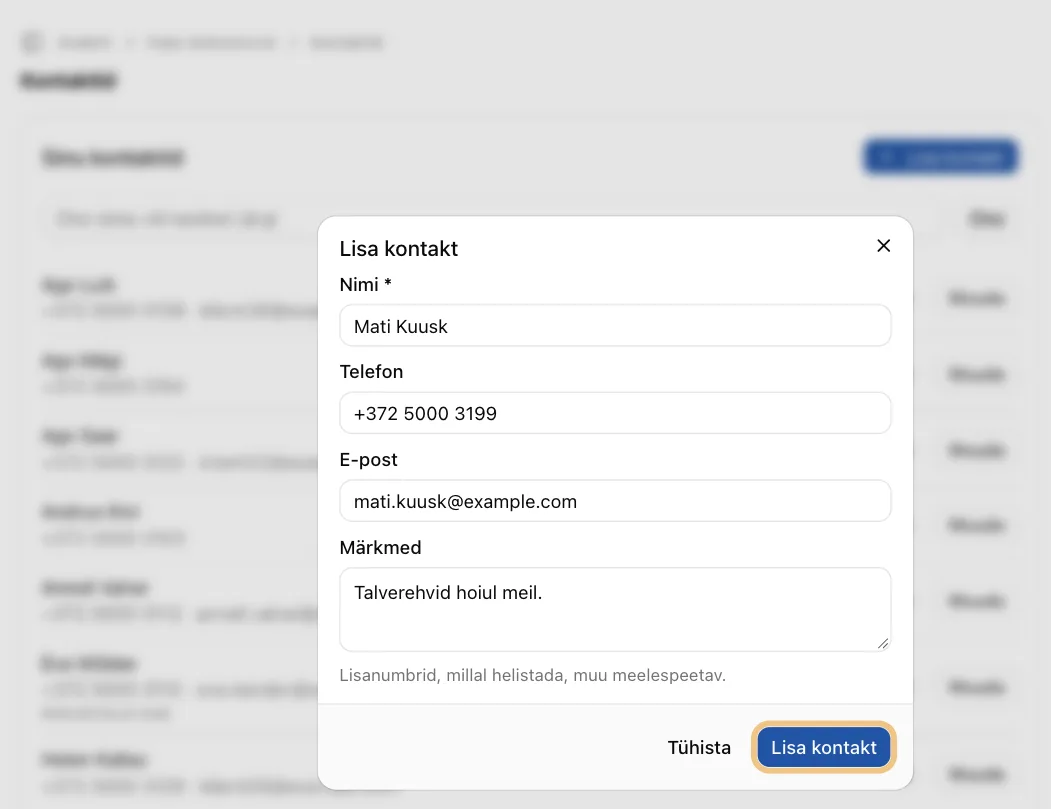
A phone typed in another way is still the same number. "+372 5100 1111" and "51001111" match. If the number already exists, Automagic asks:
- Use the existing contact;
- or Save as new contact, if it really is someone else on the same phone.
Add a contact inside a job
You do not have to leave the job.
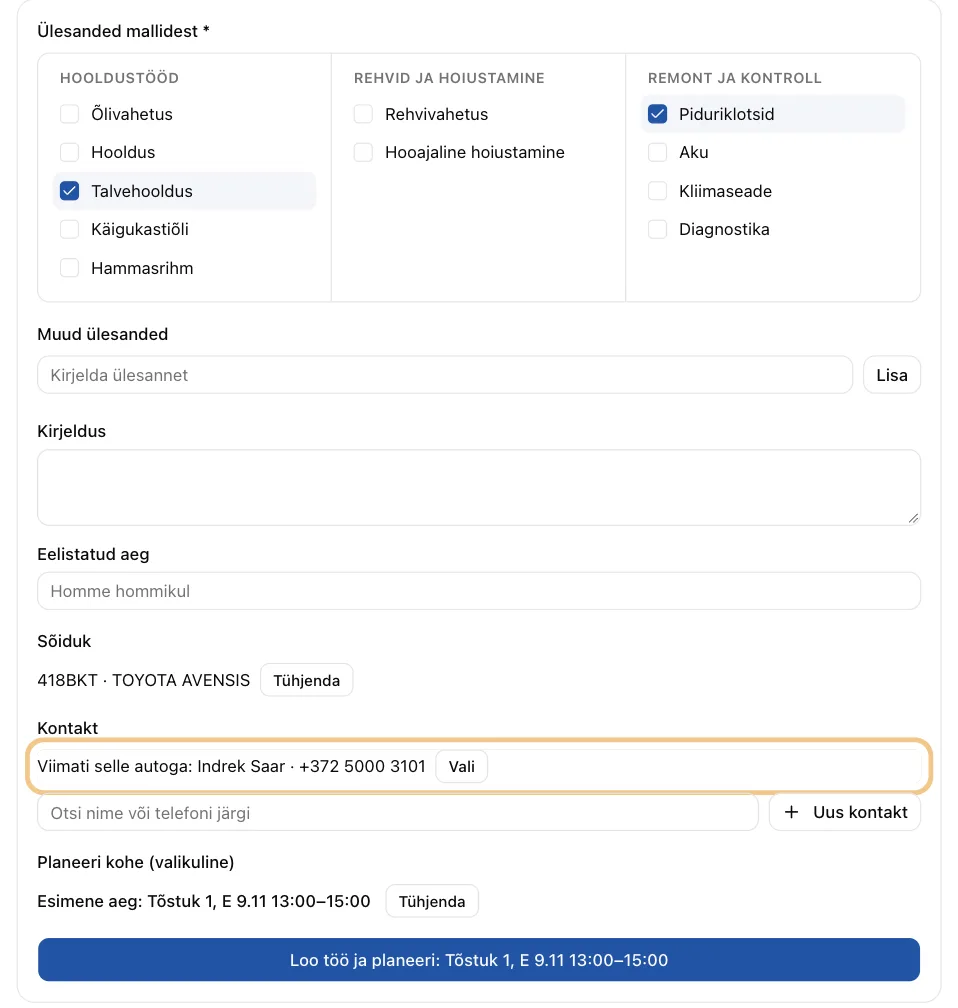
- In the job's Contact field, type a name or phone.
- Pick the person from the list.
- Not on the list? Click New contact and fill it in on the spot.
When the car is known, Automagic suggests the contact who came with it last time: "Last with this car". Click Pick to use it.
See all jobs of a contact
Click Jobs next to the contact. You see the contact's jobs, each with its car and its time. Upcoming jobs come first. The rest follow, newest first.
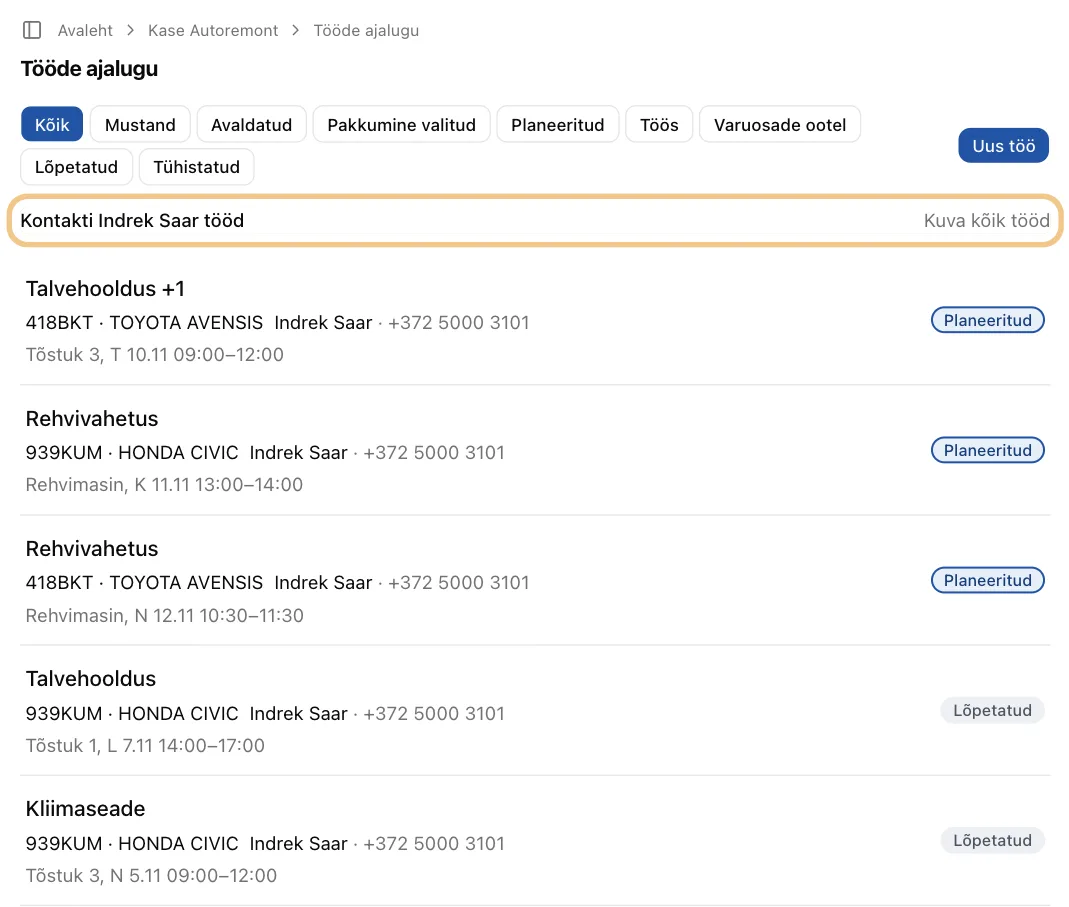
From a job page, All jobs for this contact opens the same list.
Change a contact
Click Edit. The change applies to every job of this contact. When you replace a phone or email, the old one is kept in the notes.
A driver from the marketplace
A driver who picked your offer brings their own name and phone. On the job page, click Save as contact to keep them in your list.
Next step: Offers on new jobs